
When migrating a WordPress site to a new server environment, the .wpress backup files created by the All-in-One WP Migration plugin are commonly used.
These .wpress files contain all your WordPress data, including theme files, plugins, and folders. However, since everything is compressed into a single file, viewing the contents requires a specific approach.
In this post, I will show you how to easily check the contents of a .wpress file using a tool called Traktor.
* Information current as of December 2025.
Table of Contents
Traktor is a dedicated extraction tool provided by ServMask for .wpress files, designed to work alongside the “All-in-One WP Migration” plugin.
With Traktor, you can unpack compressed .wpress files to view the folder and file hierarchy, or extract only the specific data you need.
While the actual site migration is handled by the All-in-One WP Migration plugin, Traktor is an incredibly useful tool for visualizing file contents or performing partial extractions.
* Traktor runs as a standalone application on your PC, so no installation or configuration is required on your WordPress site.
| Traktor Main Use | |
| Browse File Contents | View your WordPress themes, plugins, folders, and images in a clear, hierarchical structure—just like browsing folders on your computer. |
| Extract Specific Files | Pick and choose exactly what you need. You can select specific files or images and save them directly to your PC without extracting the whole backup. |
| Access the Database | Locate and extract the database.sql file (found outside the wp-content folder) to review or recover your site’s database manually. |
Traktor is available in two formats: the 「Desktop Version (installable software)」 and the 「Web Browser Version.」
If you are looking for better visibility and control—similar to how you navigate files in your computer’s standard file explorer—I highly recommend using the 「Desktop Version.」
| Traktor(Desktop Version) | https://traktor.wp-migration.com |
| Traktor(Web Browser Version.) | https://traktor.servmask.com |
First things first: you need the backup file itself. Start by exporting your site data using the 「All-in-One WP Migration」 plugin.
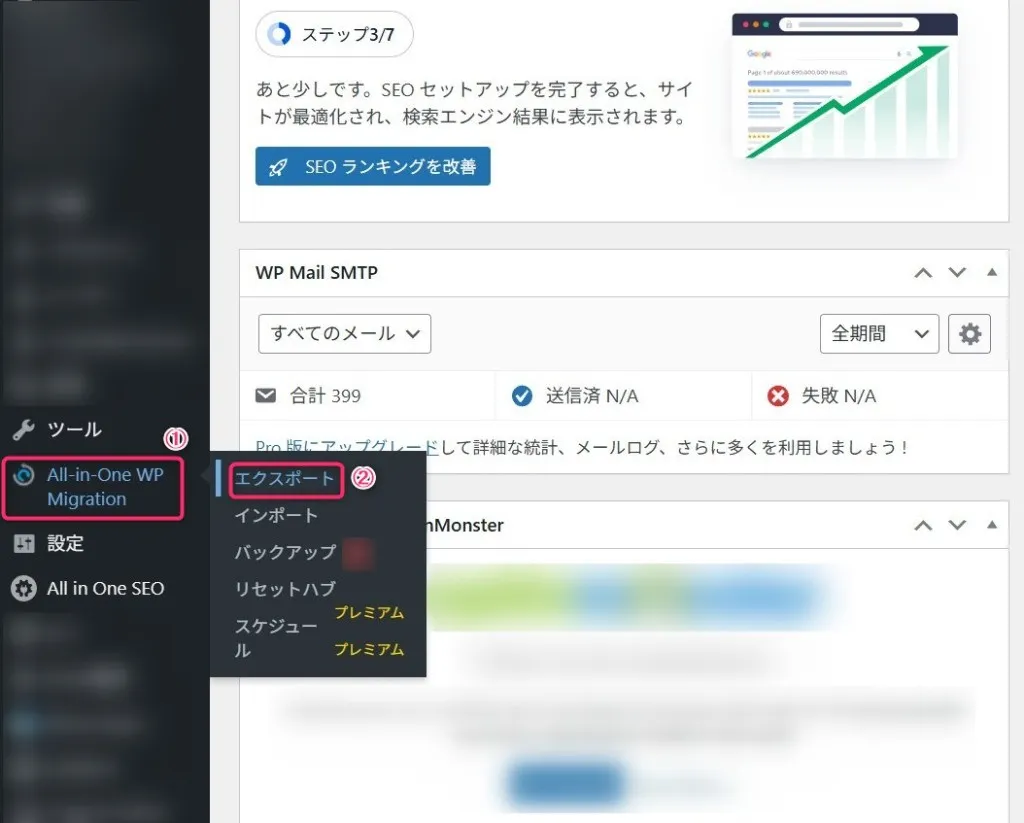
In your WordPress Dashboard, look at the sidebar menu on the left. Navigate to All-in-One WP Migration and click on Export.
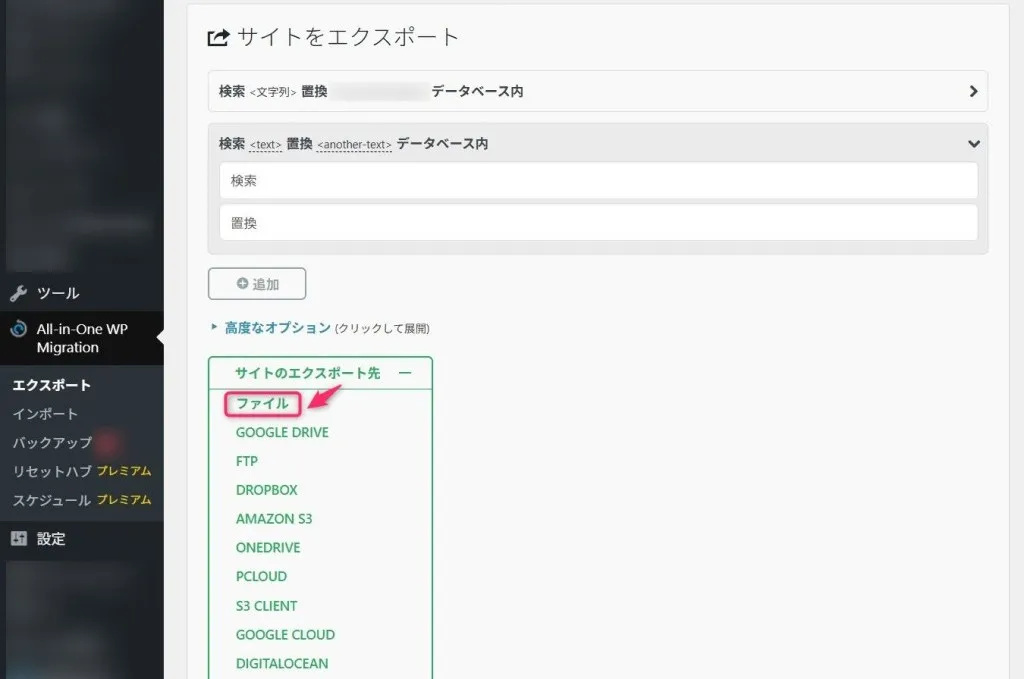
Next, click the 「EXPORT TO」 button to reveal the destination options.
For this guide, select 「FILE」. This will export the data and save it directly to your local computer.
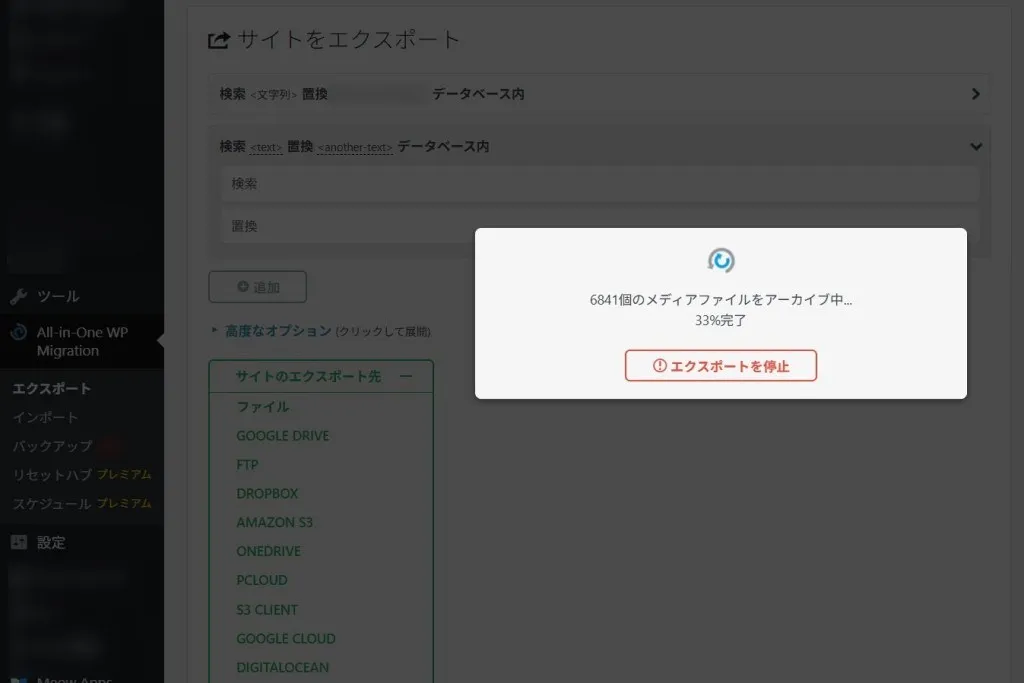
The export process will start immediately. Depending on the size of your site’s data, this can take anywhere from a few minutes to upwards of 30 minutes to complete.
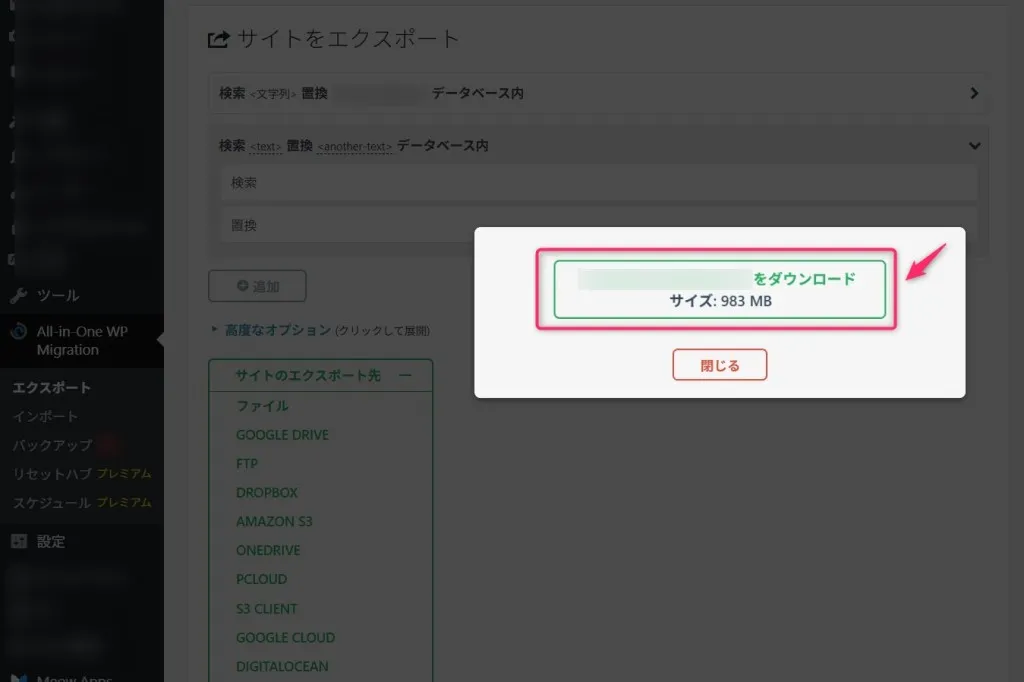
Click the button labeled 「DOWNLOAD [YOUR SITE NAME]」to save the .wpress data file to your computer. And with that, your preparation is complete!
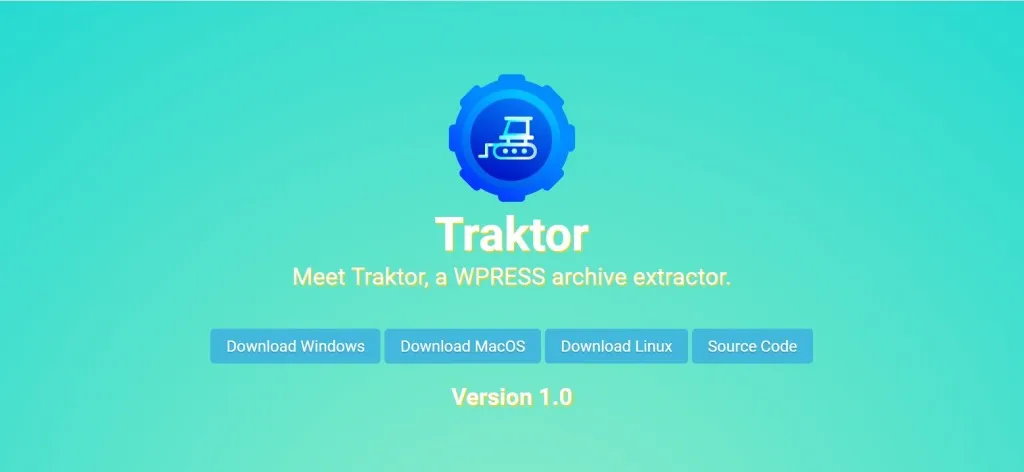
Now that you have your backup file, it’s time to inspect it. Go ahead and download the installer for the 「Traktor Desktop」 version and install it on your computer.
(Note: I will be using the Windows version for this demonstration.)
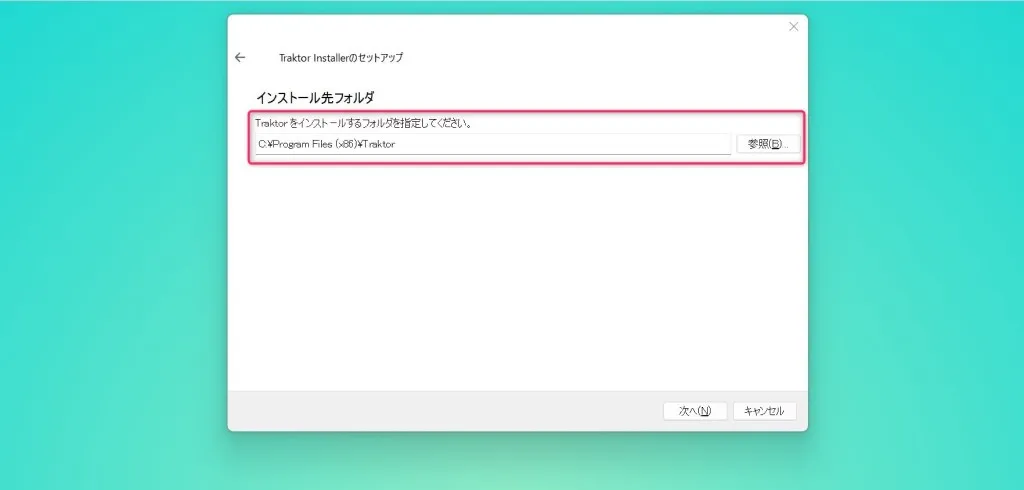
Once you’ve downloaded the Traktor installer, go ahead and run it. You will be prompted to choose a destination folder on your computer for the installation.
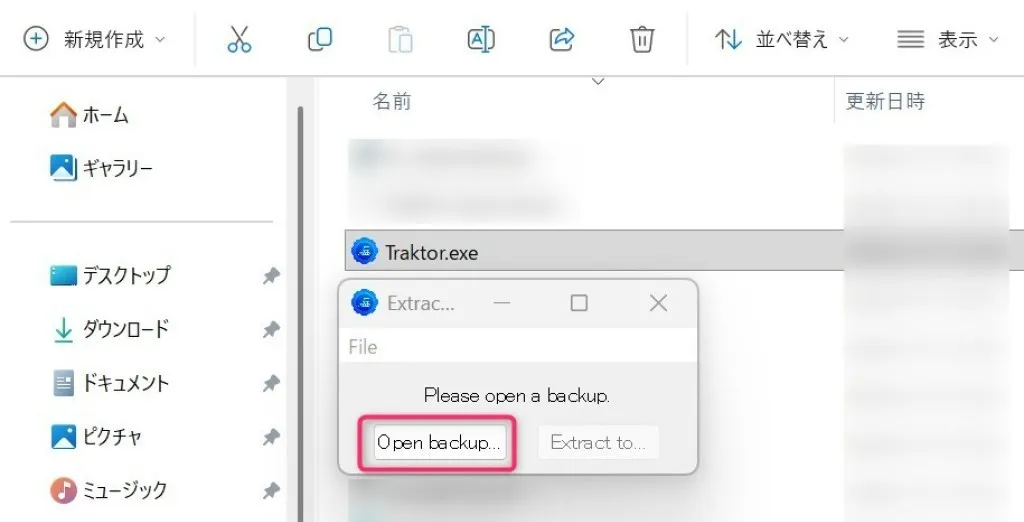
After the installation is complete, find and click the Traktor.exe file to launch the program.
* You will use this Traktor.exe file whenever you want to check the contents of your .wpress files.

Once you click Traktor.exe, a popup window labeled 「Please open a backup」 will appear on your screen.
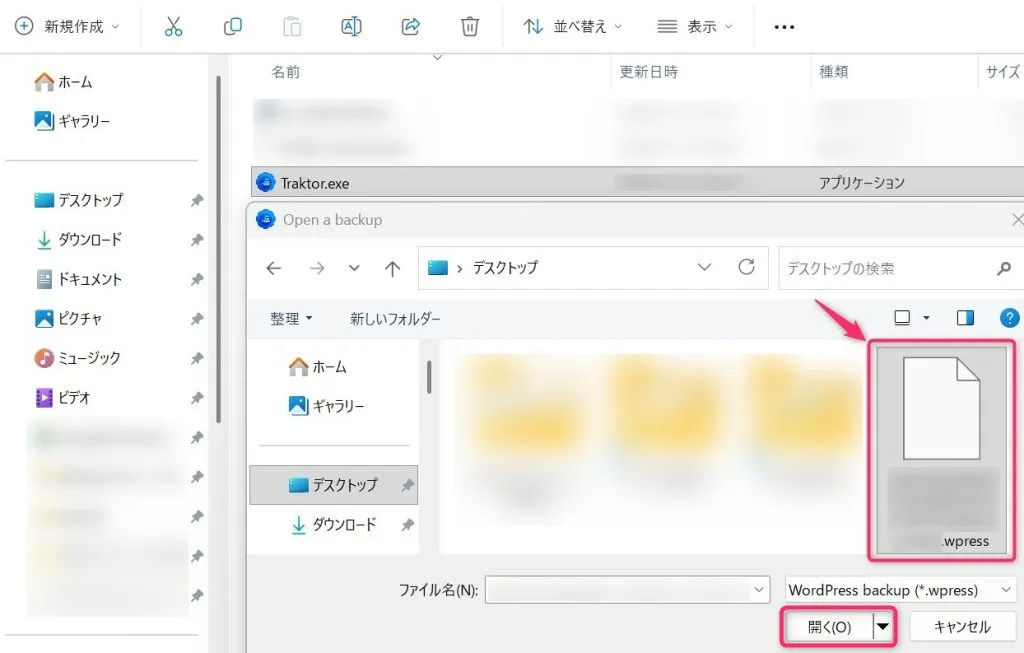
Next, simply click the 「Open a backup」 button and select the .wpress file you exported earlier.
You will see the following popup appear. Click the「Extract to 」button and select the destination folder where you want to unpack your .wpress file.
(For this example, I am selecting a folder named 「Sample folder」.)
* You must select (or create) a specific folder for this step. If you don’t designate a destination folder, you won’t be able to view or browse the extracted data in your computer’s file explorer.
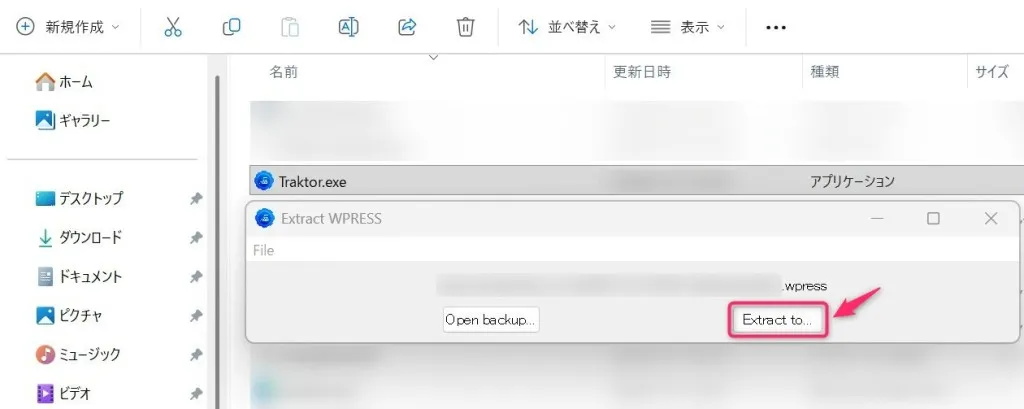
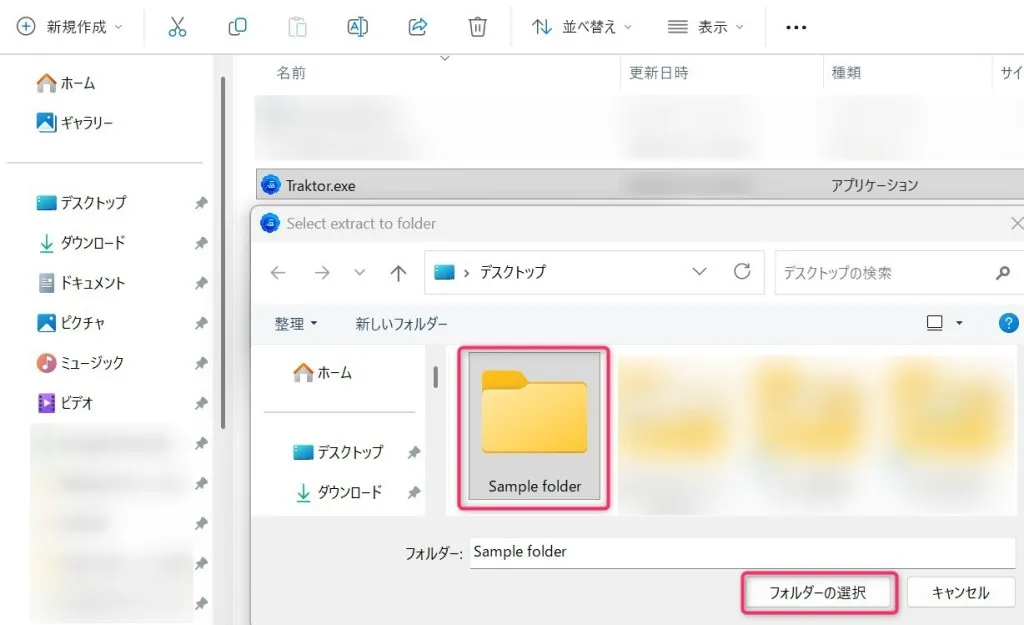
You can now fully access and browse the unpacked .wpress data right inside your computer’s file explorer.
Because the folder structure mirrors exactly what you would see when accessing your server via an FTP client, navigating through your files feels intuitive and familiar.
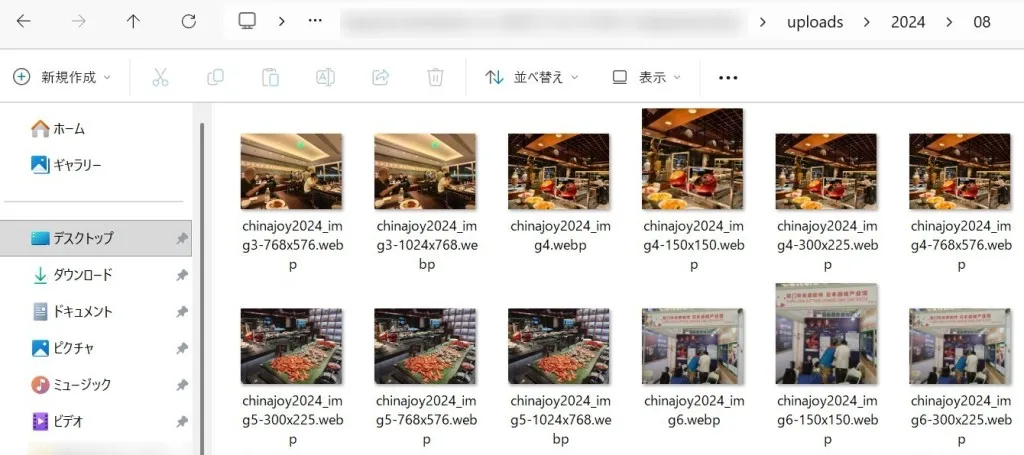
Traktor is an incredibly useful tool for inspecting the contents of .wpress files.
Because it allows you to easily visualize your site’s entire data structure, it is perfect for verifying files or extracting specific assets before you proceed with a full data migration.
For website creation, server construction/operation
▼ Company WeChat Official Account▼

▼ Contact person in charge WeChat ID ▼


 Follow us on WeChat
WeChat Official Account
Person in ChargeWeChat




 【2026】Public Holiday Calendar for China, Japan, and Singapore