In recent years, the Google Drive for Desktop UI has undergone significant updates, which may lead to some confusion during the installation and setup process.
A common challenge for many users is knowing how to customize the “Virtual Drive Location” for their data.
This article provides a detailed guide on the installation and setup process, as well as how to change the drive location, to help resolve these concerns.
* Current as of April 2026
Table of Contents
“Google Drive for Desktop (formerly known as Google Drive File Stream)” is a software application introduced by Google that allows you to use the web-based Google Drive as a “virtual drive” on your local computer.
Compared to the web version, Google Drive for Desktop is significantly more efficient when handling large files and complex folder structures.
Once the desktop client is installed, your cloud files appear seamlessly in your File Explorer (Windows) or Finder (Mac).
Because all actions in the local environment are automatically synced with the web version, you can directly open or edit files.
The system automatically syncs all changes, saving you the trouble of manual uploading and effectively preventing version conflicts.
| Google Drive for Desktop URL | https://support.google.com/a/users/answer/13022292?hl=en |
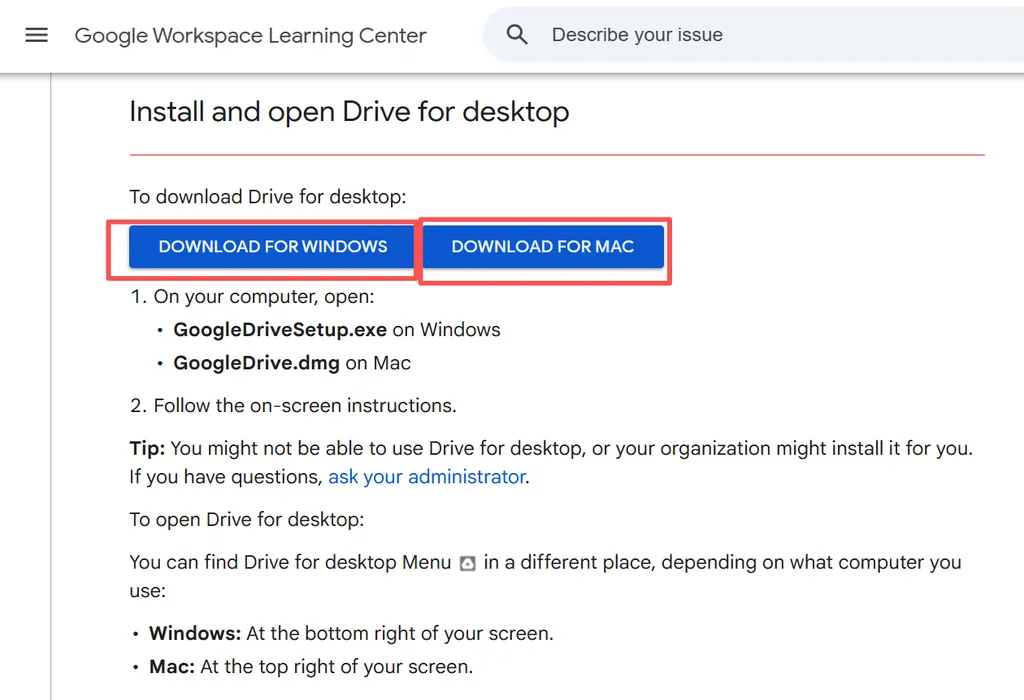
Google Drive for desktop is currently available for both Windows and macOS.
Please download the appropriate installer according to your PC’s operating system.
* In this article, we used the Windows version of the installer.
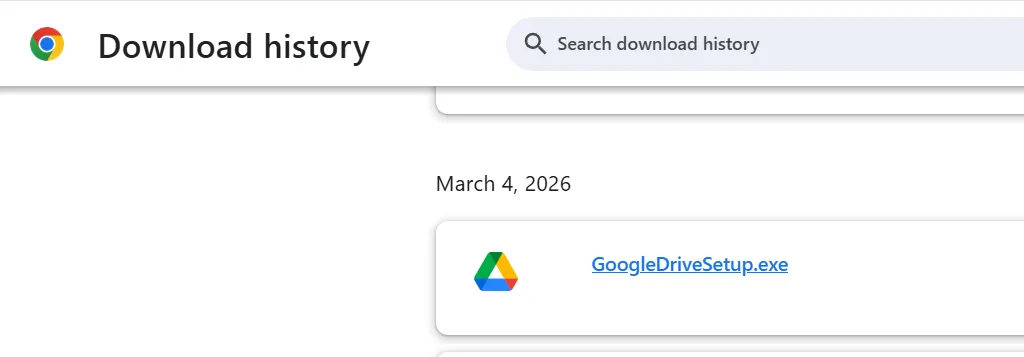
Once the download is complete, locate the “GoogleDriveSetup.exe” file in your download history or folder and double-click to run it.
During the installation, a system prompt may appear asking if you want to allow this app to make changes to your device. This is a normal prompt—simply select “Yes.”
Then, follow the on-screen instructions. When prompted to sign in, enter your Google account (Gmail) email and password.
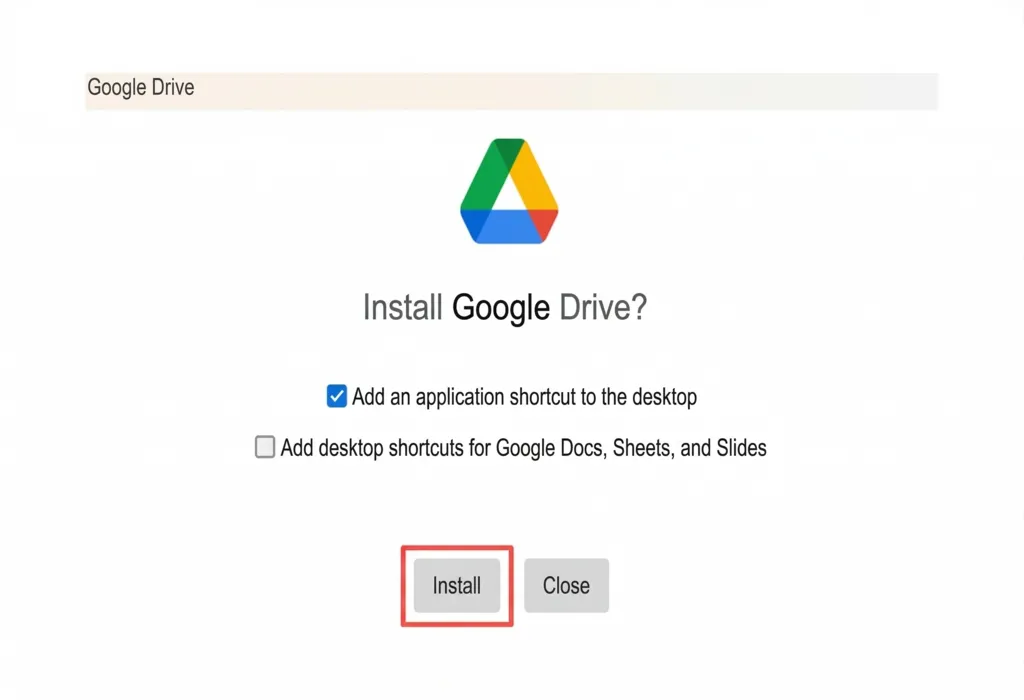
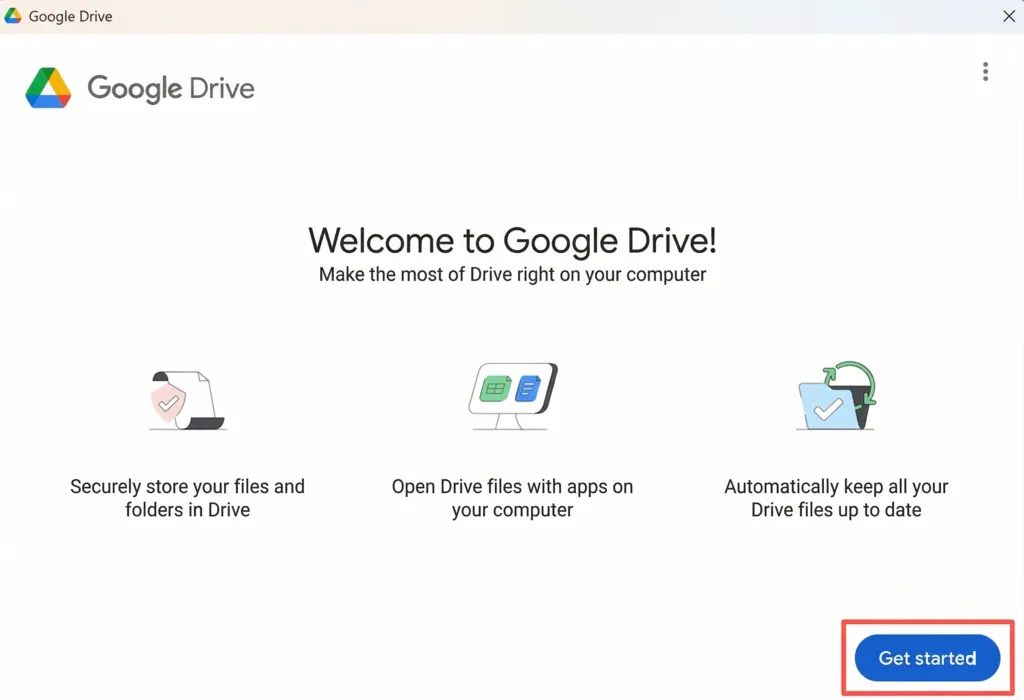
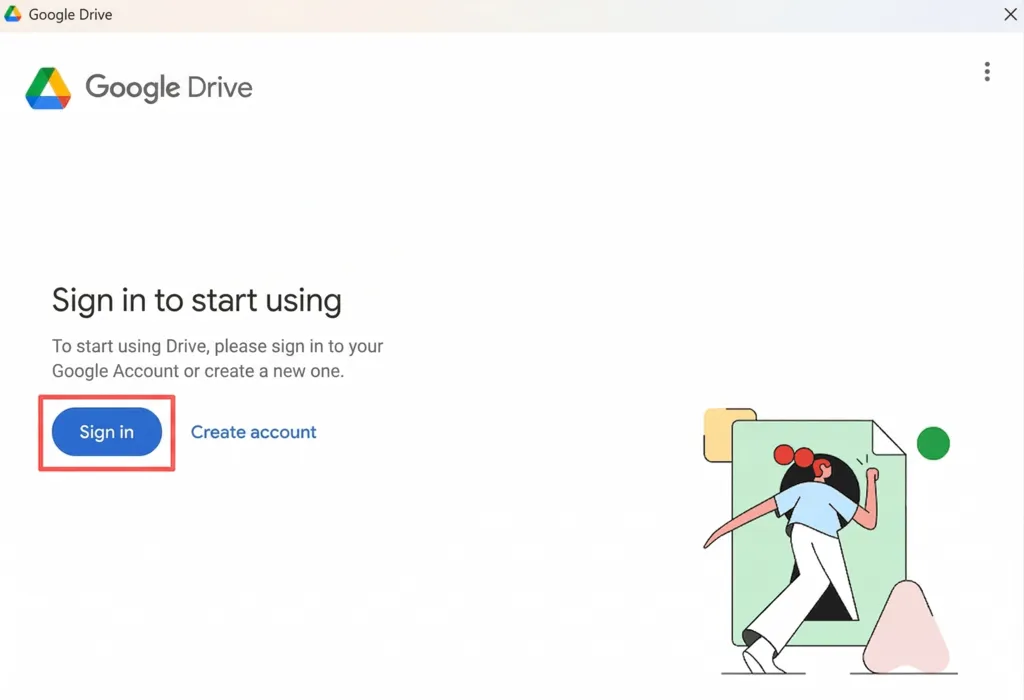
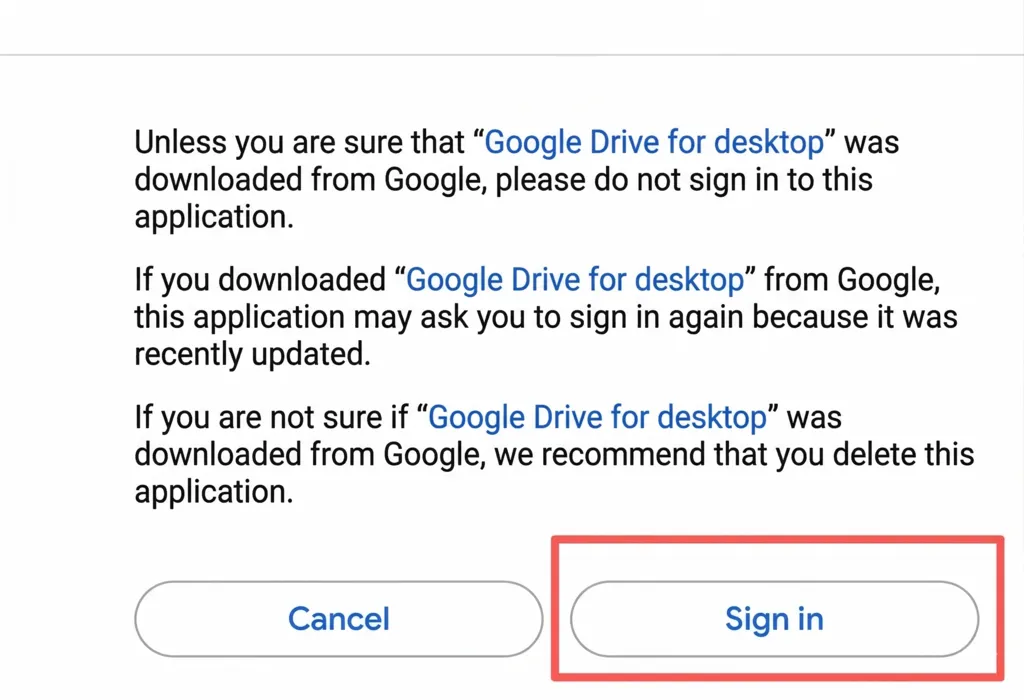
After signing in, the setup interface will appear—simply follow the visual guide. A key decision here is whether to sync files and photos from your computer to the cloud.
If you primarily use Google Drive to access or edit files shared by others, we recommend skipping this step. This will save local disk space and keep your system running smoothly.
However, if you want to back up important folders from your computer, you can select them here and click “Next”.
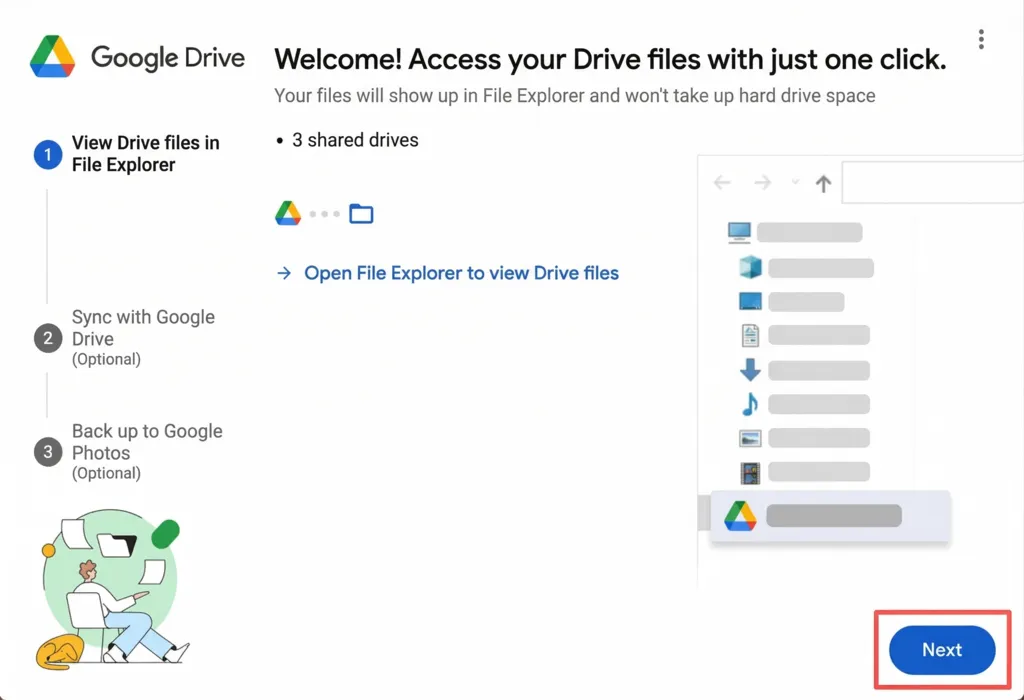
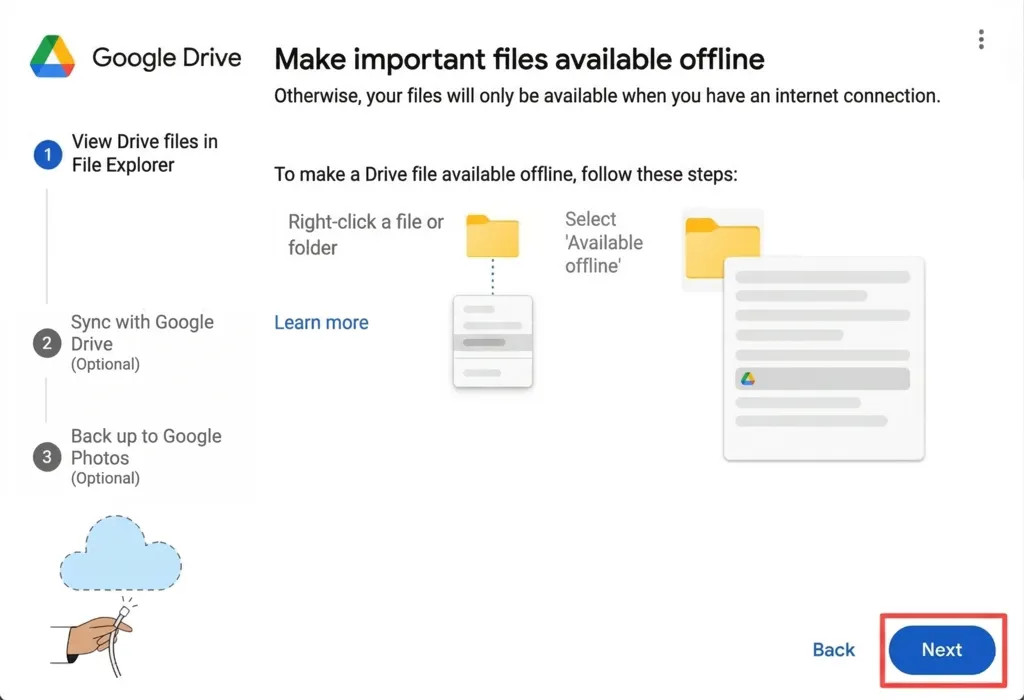
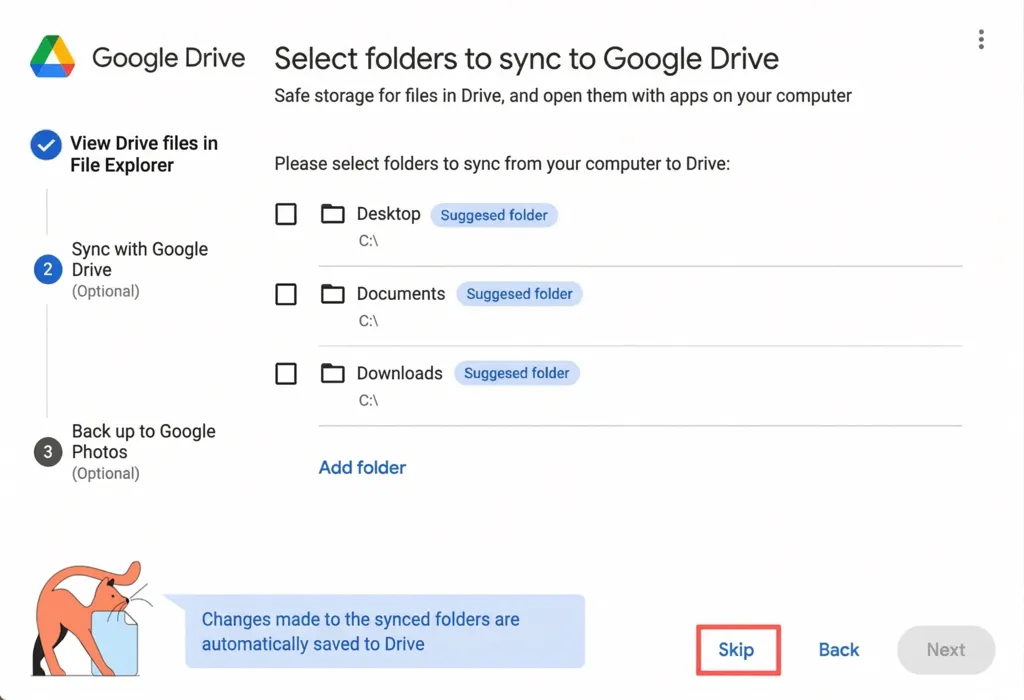
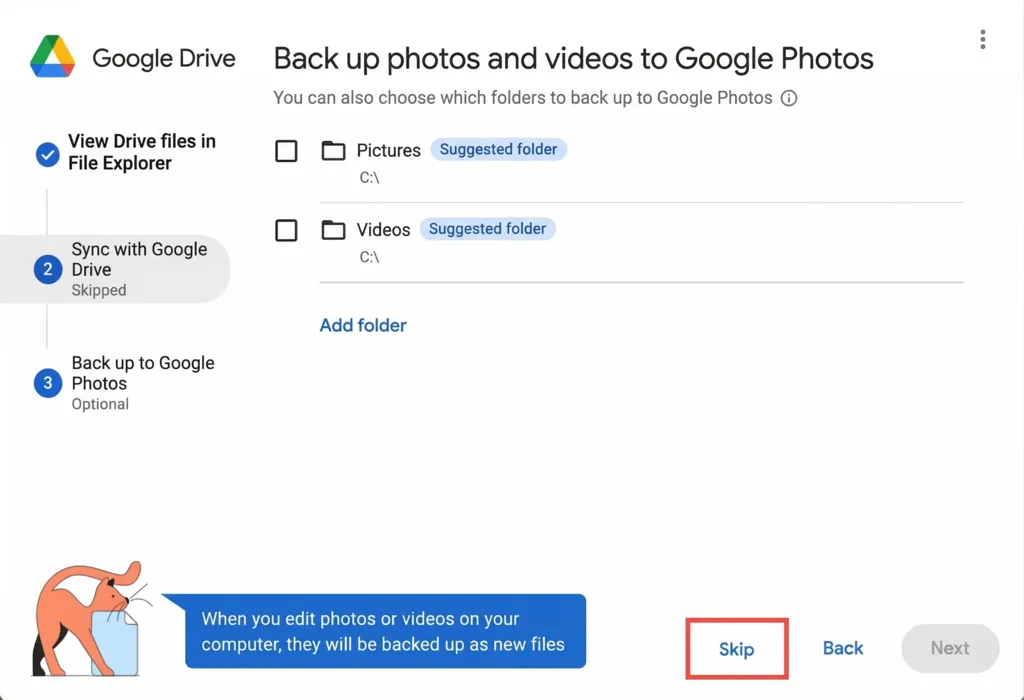
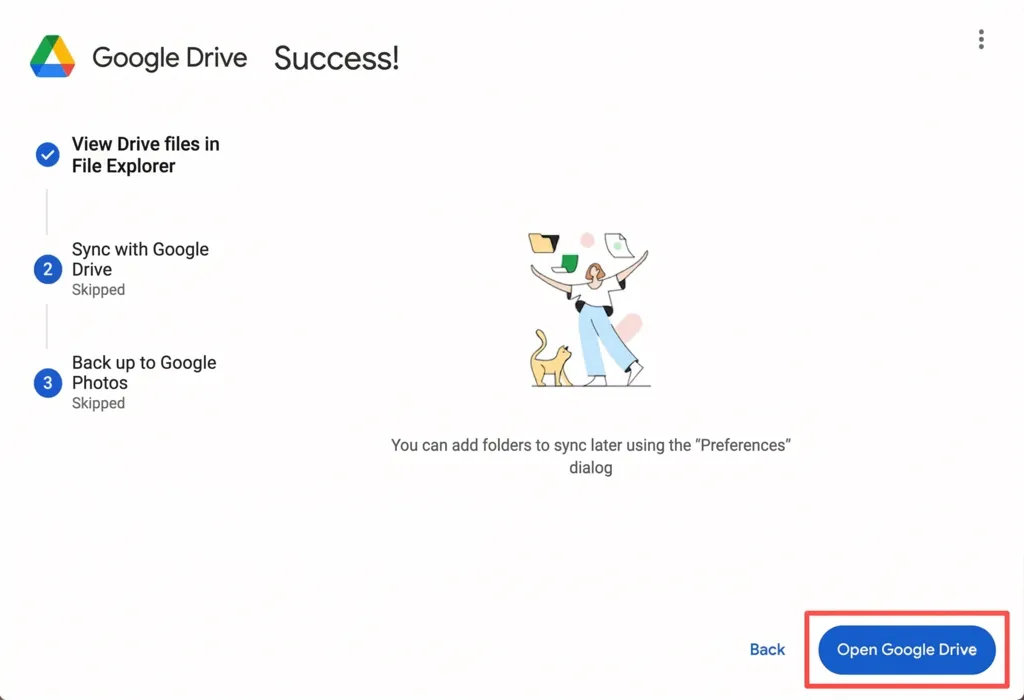
After installation, Google Drive will create a virtual drive by default (usually the G: drive).
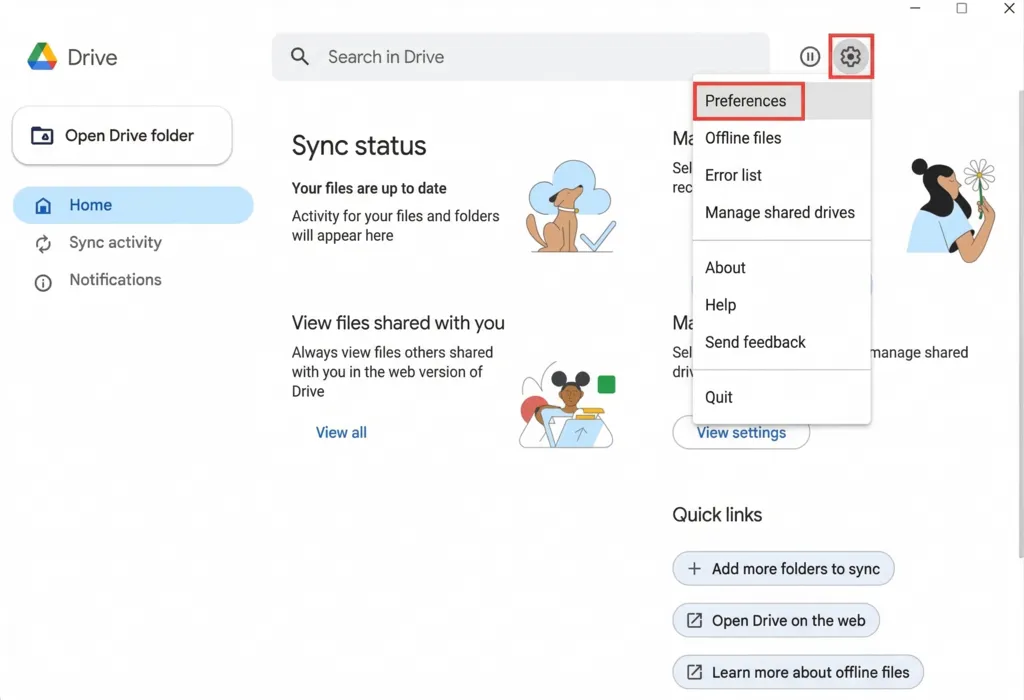
If you need to change the drive location, you can open Google Drive, click the gear icon in the upper-right corner to enter “Preferences”.
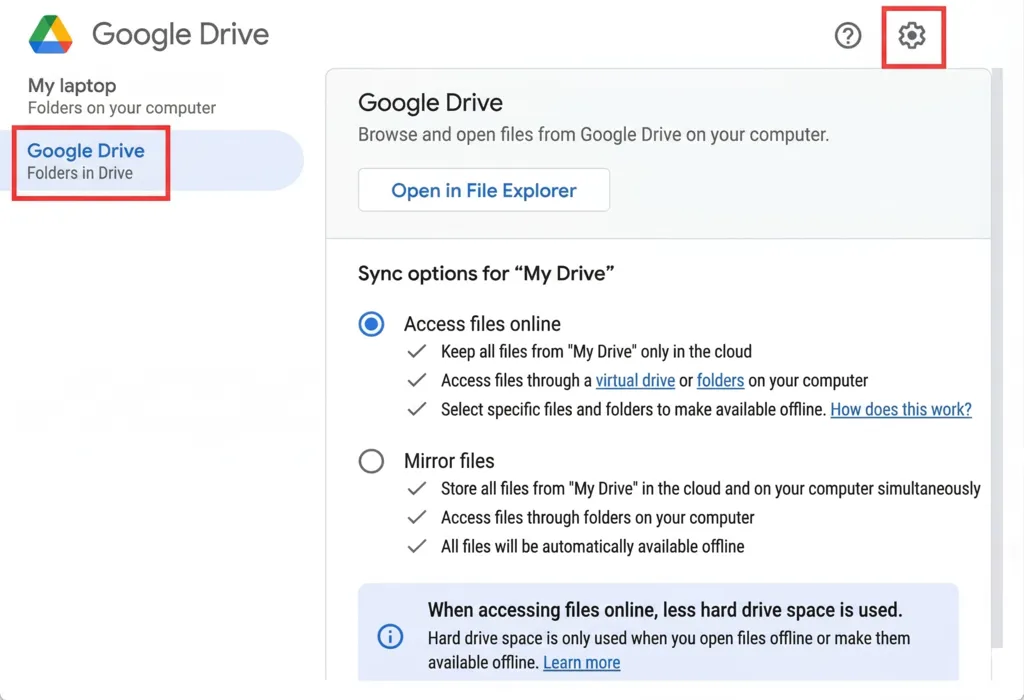
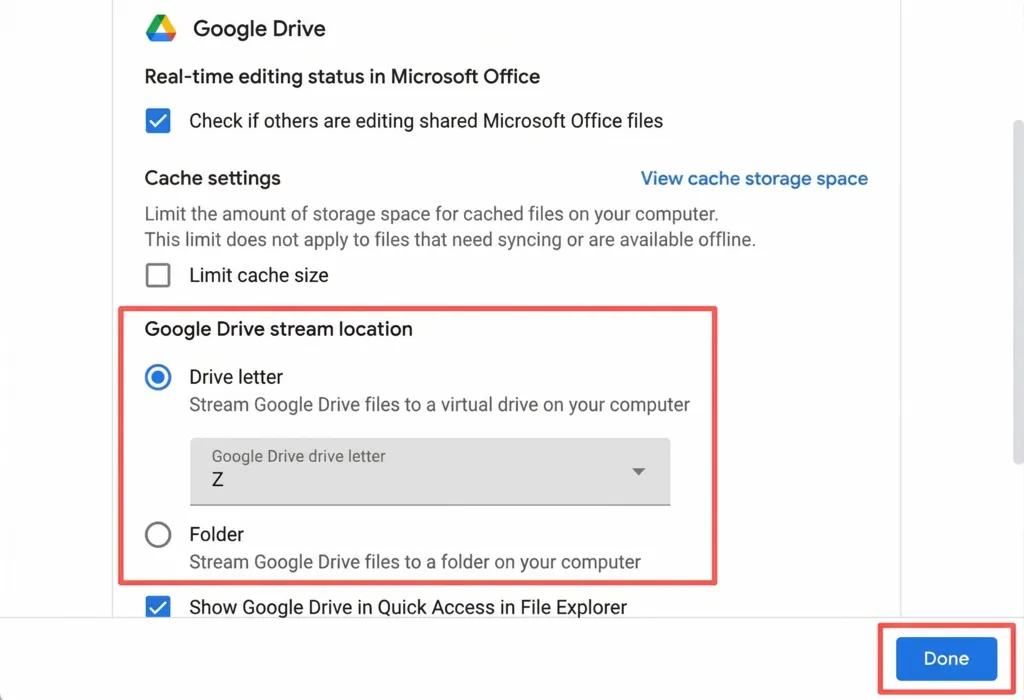
From there, select “Google Drive” on the left, then click the gear icon in the upper-right corner again, scroll down to find the “Drive letter” option, and change it to your desired location.
Once all settings are configured, it’s recommended to create a shortcut on your desktop for easier daily access.
Simply open the Google Drive folder and drag it directly to your desktop. This way, you can quickly access Google Drive by double-clicking the desktop icon.
That completes all the setup steps for Google Drive for Desktop.
Among them, customizing the drive location may be a key concern for many users in everyday use.
Simply find the corresponding option in “Preferences” and change it to your desired location, making daily file management and access more convenient.
We hope this article helps you get started quickly and carry out your daily office work and file collaboration more smoothly.
| Web Application Development | https://beyond-shenzhen.cn/en/service/development |
For Website Development and Managed Cloud Services
▼ Company WeChat Official Account▼

▼ Contact person in charge WeChat ID ▼

 WeChat Official Account
WeChat Official Account
Person in ChargeWeChat




 【Case Study】Gaming Media Site "AUTOMATON CHINA"
 【2026】Public Holiday Calendar for China, Japan, and Singapore